How-To Set Up A Hotmail Account On Mac Mail - Complete Guide
| Labels: Accounts, Check, Email, Enhancement, Faster, Freeware, Gmail, Hotmail, Leopard, Mac, Mac OS X, MacFreePops, Mail, MSN, Preferences, Settings, Windows Live | |Hotmail is one of the most popular email services out there. Millions of people use it (including me) and its great. But that said I do have one big problem with it...
Hotmail doesn't work with any mail client unless you buy a premium membership!
This means it doesn't work with Mac Mail or any other email applications for mac. But, luckily there's ways to work around this. If you've ever wanted to use your Hotmail, Windows Live or MSN email with Mac Mail this is how to do it.
Solution #1 - Switch Your Email
The best solution is to switch to a service that does work with Mac Mail (I'd suggest Gmail).
You may not want to do this but it's the best in the long run. I'm sure many people won't want to do this if everyone they know sends them info through their Hotmail address. I too didn't feel like telling everyone to switch.
So if that's the case then here it is.
Solution #2 - Download "MacFreePops"
This is best way I know for getting your mail out of hotmail. You may have heard of "httpmail". I've tried it and it failed, so I'll show you how I got it to work with MacFreePops.
- Download and Install MacFreePops
Click here to get MacFreePops. Once it's downloaded move it to your application folder.
- Open Mac Free Pops
When you first open it up the window will look something like this.
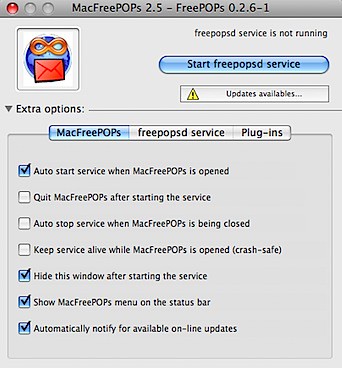
Before you start, make sure Mac Free Pops is updated. Click where it says "Updates Available" to download all the updates. Do this twice to get everything, after the second time don't worry if it says there are updates.
Next check all the options you want. I've circled all the ones I have but you can do whatever you like.
- Check You Have The Right Settings and Start MacFreePops
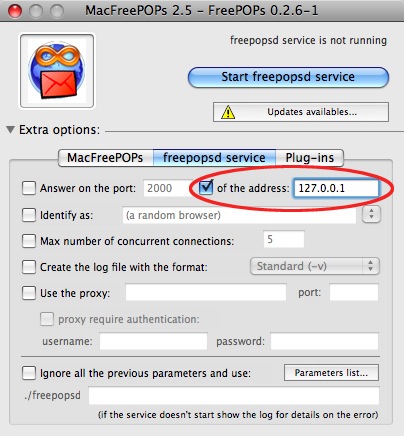
Click "freepopsd service". Make sure that window looks like this. Check that the circled things are set right too. When your all done click "Start freepopsd service".
-
Make a New Mail Account
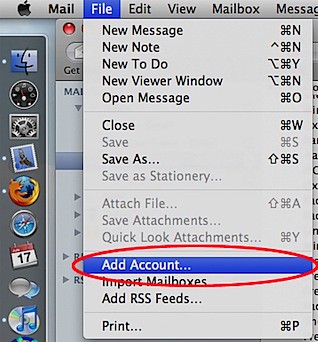
Open up Mail. Click "File > Add Account...".
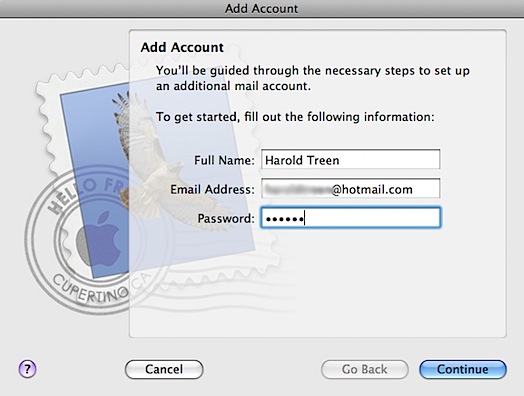
Start setting up your new account by entering your Name, Complete email and Email password. Click "Continue" when your done.
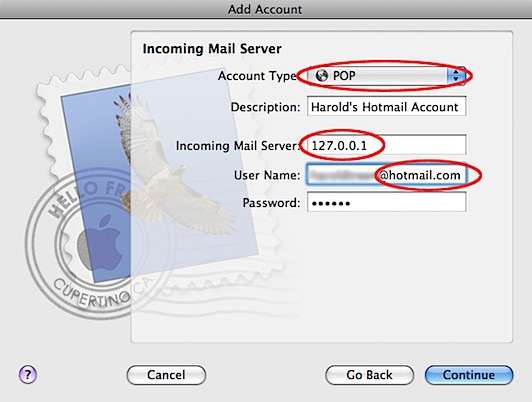
Next you're asked to setup your Incoming Mail Server. To do this:
- Set the account type to POP.
- Enter any description you like.
- Set "127.0.0.1" as your Incoming Mail Server.
- Make sure the user name is your FULL email (includes the @hotmail.com, @live.com, @msn.com, etc.).
- Click Continue.
If you get an error message ignore it and keep going.
Ignore "Incoming Mail Security" and keep going to "Outgoing Mail Server". For this:- Put in any description you like.
- For my outgoing mail server I use "smtp.gmail.com".
I believe it works without authentication. If not you can set up a gmail account for free and use put in your user name and password for authentication. Try without authentication first and see how it goes. You can keep "Use only this server" checked. - Click Continue.

Mail will then take you to a summary of all your settings. Make sure everything looks right and click "Create".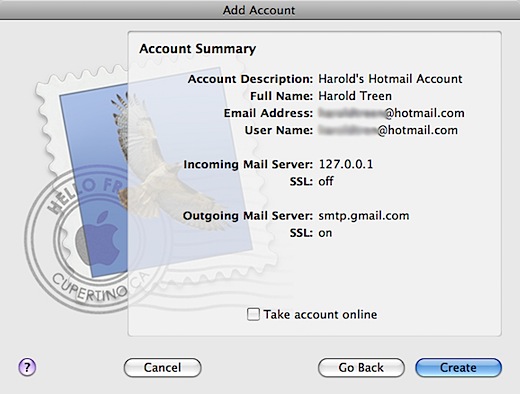
-
Modify Your New Account's Settings
The last thing you need to do is change a few account settings. Open Mail again and click "Mail > Preferences".
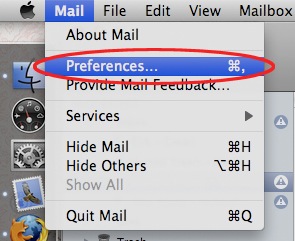
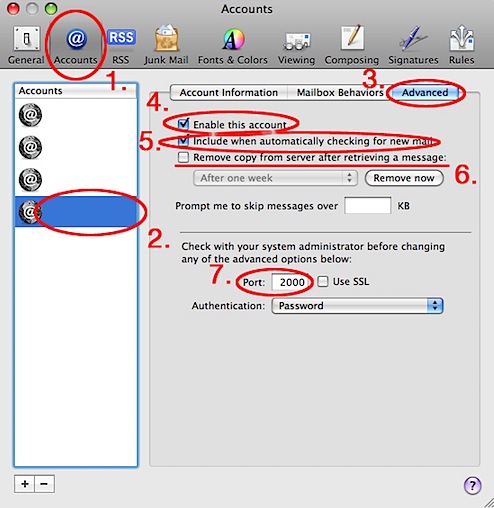
To finish setting up your account:
- Go to the "Accounts" section.
- Choose the account you just created from the left-hand menu.
- Go to the "Advanced" section.
- Make sure "Enable this account" is checked.
- Make sure "Include when automatically checking for new mail" is checked.
- I would suggest unchecking "Remove copy from server after retrieving a message:". If you ever need to switch back to using Hotmail the old way, all your e-mails will be gone. Better to just leave them.
- Change the port to "2000".
Congratulations, your done!
If it doesn't work, you probably have quit MacFreePops. Make sure it is open and that the service is running.
Now checking your email can be a lot quicker. Good Luck!

 Posts
Posts


Awesome post!
I followed every step (great post, btw) but for some reason I can't send email. I am receiving emails from my Hotmail account just fine but can't send them. Any ideas?
Indeed. Macfreepops lets you receive emails but not send them.
In the account settings (in mail) theirs something like an incoming and outgoing server.
Macfreepops works for incoming, letting you get mail from you hotmail mailbox. For outgoing it doesn't work with macfreepops.
What I've done is setup a Gmail account and put that accounts outgoing information in that section.
This is how it works
Incoming Hotmail Message ----(Goes to mail through macfreepops)----> Received for Hotmail account in Mail -----> Reply -----(Sends the message as if it were from your gmail account because that's what you put for the outgoing) -----> Person receives a reply from your gmail.
It's good because it means I can reply to peoples hotmail messages with gmail. Then people catch on that my gmail is the new main account and hotmail becomes used less and less.
Hope this makes sense/helps! :D
Fabulous, thank you so very much!
Thank you very much!
i used it one day, but since today is hotmail a popmail for free!
the incomming post server is: pop3.live.com
server outcomming post is: smpt.live.com
I have a hotmail account but this works perfect!
I have followed the instructions; however, I keep getting the following error message:
The server error encountered was: The server “127.0.0.1” refused to allow a connection on port 2000.
Any suggestions??
Hi, great post! I would love to be able to use all of this information but for some reason i cannot access the buttons/fields in the 'freepopsd service' tab in the MacFreePOPs menu. meaning, this whole section is light grey, not active, not clickable. hope i am making sense, can anyone help?
Nevermind! For anyone who is as thick as me, and this happens to you, go to File -> Start/Stop freepopsd service. Thanks, me! You are sooo welcome!
Unfortunately I didn't read this and didn't uncheck the box for deleting read messages from server. Is there any way to get my messages back to my normal hotmail account?
Thank you so much for your time. I really would appreciate!!!
Hotmail Technical Support
Intersting and beautiful blog lovely presentation thanks for sharing your views.
i get use full knowledge for Windows Live Mail Help & Support
Thank you. Your blog was very helpful and efficient For Me,Thanks for Sharing the information.
Thank you so much for your time. I really would appreciate
really it was very nice blog.Now Hotmail is Very advanced features for Hotmail users it was very good in customer Service .Thanks for sharing the information.
Thank you. Your blog was very helpful and efficient For Me,Thanks for Sharing the information.
Great Blog, a lot of helpful information here and obviously, thank you in your effort,keep posting .
Hey
Thanks for sharing helpful information . i think it's very useful for us. good job keep it up..
Visit:- Hotmail Support Call 1-888-897-5899 (Toll Free)
Thanks
Eva
For any trouble to accessing hotmail account contact Outlook Helpline Number Canada 1-800-253-48-54, and our team will help you.
Thanks to you your blog is so informative and useful for hotmail customer care. Are you sure this hotmail customer care number
how to open hotmail account?
abrir hotmail iniciar sesion
Contact at Outlook Helpline Number Canada 1-844-305-9778 if you have any issue in windows Outlook account.
For any trouble to accessing Hotmail account contact Hotmail Customer Care Number Canada 1-844-305-9778, team expert will help you.
Nice Post, have you any problem with your gmail account? Gmail Support Phone Number USA is an independent technical support company. Call us at Help Number USA for any kind of technical assistance.
It was really very helpful. Hotmail Helpline Number For UK 0808-178-2624
Hotmail is the best emailing client that has been giving the correct emailing experience but technical issue do not let the users get that and to fix that you should talk to the technical experts at 0800-090-3240. Hotmail Helpline Number UK
I have been through your blog and being a technical expert, I found it quite information giving. Here, you forgot to tell about the correct to counter the issue which is to contact the technicians. If one facing any tech problem, then contact us at keyword and for more information follow the link. Hotmail Helpline Number UK
Nice Blog, I have been throughout your blog and being a technical expert, I found it quite information giving. Here, you forgot to tell about the correct to counter the issue which is to contact the technicians. If one facing any tech problem, then contact us at keyword and for more information follow the link. Hotmail Help Number UK
Nice Blog Want technical help for your Blocked hotmail account call
Hotmail Contact Number UK and get quick support for hotmail account
Need help in fixing the problems that are coming in your way to use Gmail account, at this time, must contact the technicians at 0808-281-8685 to resolve that.Gmail Help Number UK
Among all the mailing competitors, hotmail is on the top pick. But, sometimes it arise certain technical issues in it. Technical team at 0800-029-4639 toll free number will help you out these issues. The service provided by them is active 24/7. Hotmail Helpline Number UK
greatarticle dear !i really like your posts
hotmail Customer Support
hotmail Customer Care number
wow!nice post man ..than you so much
AVG TECHNICAL SUPPORT
AVG CUSTOMER CARE
Hotmail is a standard approach to share data by the email in the UK. Hotmail is for the most part utilized electronic specialized techniques to associating the general population on the web. In the event that you confront any issue contact our specialized master at Hotmail client mind number +44-800-090-3220 Hotmail Phone number to effectively resolve your concern.
Nice information... For more information Call 1800-863-5563
Visit here:
AOL Email Support
AOL Email Customer Service Number
AOL Email Customer Care
AOL Email Customer Support Number
AOL Email Support Number
AOL Email Customer Service
AOL Email Customer Support
AOL Email Technical Support
AOL Email Tech Support
AOL Email Customer Care Number
AOL Email Support Toll free Number
AOL mail Customer Service
AOL Support Email
AOL Mail Tech Support
The above post seems to be very helpful for Gmail users. We also serve Gmail users at Gmail Help Desk Number UK to help them fix its issues.
Asus Router Customer Support the problem occurs again, just delete the current network from the list of your saved networks on your device and then reconnect it again.
nice post and thanks
Asus router customer service
nice post and thanks
Asus router customer service
he Linksys WRTAC3200ACM is dual band router that is using open source firmware, hence name it WRT. you can run open source firmware on routers in recent days. so, WRT 3200ACM is not so much unique, but it is called for power users. it is our top pick but it is lost by the margin to the router this is because it is not too fast, and also to achieve its speed of AC3200 you need special hardware. It is strong with 5G technology and it is the best software on the desktop. it is best for a small area use like a small house.
many people are facing problen in their internet explorer they people can contact us we are here to provide the complete solution about the asusu router support.
internet explorer customer support
This is a common form of information that amongst all the browser only Safari is known for it’s accuracy and precise functioning quality. So, this is why users are advised to bank on source like +1-866-569-8043. Professionals when answer the series of questions of the callers, then it is known to users about steps to improve work quality.
Safari Helpline Number
If there is anyone who is not able to understand why some type of technical issues are coming up in Hotmail, then bank on 0800-029-4639. In the market there is no one who can actually transfer good quality of work then don’t panic and refer the experts. Other sources or professionals belonging to other sources do not have the expert knowledge like Hotmail Professionals do possess. Over the years countless times measures are being undertaken for precision being maintained and this is what is raising the bar of efficiency provided by experts of Hotmail.
Hotmail Help Number UK
Norton.com/setup Online Help – Step by Step guide for Norton Setup, Download & complete installation online. We are providing independent support service if in case you face problem to activate or Setup Norton product.
norton.com/setup
Norton.com/setup Online Help – To enable this protection for your Windows or Mac PC, all you need to do is download, install and activate the Norton Setup. But, before you start with the downloading process, remember to uninstall the already installed security software or antivirus (if any) from your device. This is mandatory to avoid any software conflict issue.
norton.com/setup
Norton.com/setup Online Help – To enable this protection for your Windows or Mac PC, all you need to do is download, install and activate the Norton Setup. But, before you start with the downloading process, remember to uninstall the already installed security software or antivirus (if any) from your device. This is mandatory to avoid any software conflict issue.
norton.com/setup
mcafee.com/activate Online Help – Step by Step guide for mcafee activate, Download & complete installation online. We are providing independent support service if in case you face problem to activate or Setup mcafee product.
mcafee.com/activate
Whether it is for connecting worldwide or for professional work, Hotmail is most adopted mailing client. If you are prevented by any technical issue being imposed in your Hotmail account, then there is none other better service than to adopt technical support team at Hotmail Help Number UK 0808-101-2159. This toll free number proffers best support service ever.
In the market there are many alternatives which can make sure of continuing work in the most effective manner. Having said this, professionals are readily available if the user dials Hotmail Customer Care Number UK 0808-101-2159. The procedure of making sure all complicated or simple steps are resolved without any difficulty.
Thank you so much for this informative post!!
Aol customer support phone number | 1-(800)-294-5907, just dial our USA toll-free number and get more to more solution.
If there is anyone looking for most effective form of email platform then banking on Hotmail is considered to be most reliable one. If there is any problem like not able to receive or send email, attachments not being sent etc then consult experts of Hotmail.
Hotmail Help Number UK
The user does not have to worry about smooth working of Hotmail account. It is simply because of superior form of understanding of the professionals of Hotmail. if there is any technical obstruction like – not able to send or receive emails, difficulty in managing settings, slow working of Hotmail etc. The concerned person needs to just refer to Hotmail Customer Service Number UK.
Hotmail Support Number UK
It is necessary for every Gmail user to keep their account safe from hackers. They need to take some important measures for this purpose. The best way to enhance your Gmail Account security would be connecting with experts of Gmail Customer Care Number UK and get security knowledge from them.
Gmail Help Number UK
We cannot underestimate the issues that Hotmail users encounter. It can be anything starting from forgotten password to hacked or compromised account. Technicians of Hotmail Customer Care UK, has thorough knowledge about this service and can help you in dealing with any problem.
Hotmail Helpline Number UK
The user does get caught in confusing element while conducting work through Gmail. It is the most promising form of email source that delivers only quality service. If the user goes through any problem then just consult professionals through Gmail Helpline Number UK. The professionals of Gmail are the best source for answering to queries raised by the users of Gmail.
Gmail Support Number UK
Not every post is as helpful as this one. We are also offering solution for Hotmail issues, and to connect with us, you just need to make us a call on Hotmail Helpline UK.
Nice Article. However, I like watching comment, more instead of reading articles..if you need msn support then contact us
MSN support, MSN support phone number, MSN customer service, MSN customer service number, MSN help, MSN tech support, MSN technical support,
The user does not have to run here and there for right and precise information about Norton Antivirus. Professionals can be easily contacted through Norton Technical Number UK and then difficulties will be provided with correct solutions. All the experts have thorough knowledge about technical imperfections faced by the user of Norton Antivirus.
Norton Support Number UK
Nice Blog Please Visit our Website or Contact our Customer Service for any Support related to AOL
AOL Desktop Gold
Thanks a lot for the post.
Router Login not working
Routerlogin admin page
Routerlogin
Routerlogin Net
Hotmail users find it difficult to sign in to their email account after Hotmail has been overtaken by Outlook. The reason behind this issue may vary from user to user and without identifying the reason you won’t be able to resolve it. So, let our technicians help you in this matter. You can call these technicians at Hotmail Contact Number UK .
This is such an easy answer to all my queries related to the issue confronted. If you are facing some other issue, just connect at Gmail Help Number UK.
Such blogs are always found helpful whenever one encounters in some technical error but still if one needs more detailed technical assistance then he or she may click here.
Avast Help Number UK
Kaspersky Help Number UK
Avg Help Number UK
This blog is really very much helpful but still if you need more info with regard to the technical trouble you are facing then click Bullguard Support Number UK
Nice Blog! Thanks for sharing nice information with us. This Blog is very helpful for Hotmail customer. If you are getting any technical issues get connected with Hotmail Support Tollfree Number 1-800-614-419
Very Helpfull your information is really very useful for AOL Customers. If you need further support from skilled AOL technician.AOL Tech support number excellent technical support services. Connect with us Dial AOL Technical Support Phone Number 1-800-608-2315 for
Solution of AOL Mail Error Code 554,
fix AOL mail error code 521
Fix AOL Error Code 17099
AOL Black or Blue Screen Solution
fix AOL error 205
. We are available 24×7 AOL Customer Service Number with our team of experienced AOL Customer Support Services experts in order to receive solutions to fix issues.
Hotmail users tend to face multiple issues in sending or receiving mails. If you want to clear off such issues, take the advantage and call at Hotmail Helpline Number UK 0800-029-4639 for instant resolution. This technical service is appreciable attempt for Hotmail issues.
Your Gmail account can create problems for you in the form of technical issues. These issues can be rectified, when you get in touch with the ideal professionals available at Gmail Helpline Number UK. You can dial at 0808-281-8685 toll free number and they will dictate the best resolution for your problem.
Since Hotmail has lost its identity and merged into Outlook, many users are having issue in signing in their account. They are even facing issues in exporting their emails, contacts and calendar to another account. This is when you can call at Hotmail Contact Number UK and ask our professionals to guide you.
Your blog is very informative blog for quicken customer service
Or quicken help so Looking for quicken customer service number for quicken problems so we are waiting for your calls Just Dial quicken customer care number
quicken customer care number
Thanks for sharing amazing information the blog was absolutely fantastic! Lot of great information. Hotmail accedi, How Contact Windows Live Hotmail Technical Support, Access Windows Live Hotmail with Mac OS X Mail, Hotmail accedi hotmail sign in hotmail login, Hotmail History Founders
There is no point wasting precious time in referring non-functioning form of sources for correcting flaws in Hotmail. For any difficulty like – Hotmail is not loaded in any browser, not able to configure the settings the account has been hacked etc. So, the best way out are Hotmail Contact Number UK and the answers will be received by the Hotmail users. Apart from Hotmail professionals no other is able to proceed with the corrections.
Gmail is a communication-based technical website important for everyone who uses the internet as all the applications and communications are based on this website in order to get it downloaded on Mac sign in to Gmail click the gear icon select Gmail settings to click forwarding and pop/MAP enable IMAP to configure IMAP client save changes for any further guidelines talk to the Gmail expert or visit the website at Gmail Support Number UK
Such A Nice blog by you, it's easy easy to understand whole process. We also provide email customer support service 24/7 hours and our experts assist you with best solution, call on our toll free number 1-300-190-431 or more information visit our website http://www.emailcustomersupport-number.com/.
A call at Kaspersky Contact Number can make things easier for you. We understand your security concern and we can help you get rid of Kaspersky issues that are making it easy for hackers to get hold of your system. It is suggested that when next time you face any issue with Kaspersky, get in touch with us.
Gmail users can now easily get access to quality service for all sorts of technical issues associated with their Gmail account through Gmail Helpline Number UK. Whether your account got hacked, you forgot your password, unable to send or receive emails or lost your important emails etc. call us and free yourself from all troubles.
Gmail Support Number UK
I was not able to sign in to my Gmail account, but this informative blog here helped me a lot and I got my Gmail account back to normal working. For any further information, one can also ring at Gmail Support Number UK
Thanks for sharing your knowledge.
McAfee Helpline Number UK
McAfee Phone Number UK
Really it is nice and informative and helpful blog
for more relevant information call 1-877-219-6492
Visit Here:-
Download AOL Desktop Gold
AOL Desktop Gold Download
Download AOL Gold
AOL Gold Download
Aol desktop gold
Aol desktop download
download aol 9.7
Aol 9.7 download
Download AOL Desktop Gold
AOL Gold Download Install
Free AOL Gold Download
AOL Desktop Gold Software
AOL Gold Desktop Download
AOL Desktop Gold Software
Download AOL Gold Software
How to Install AOL Gold Desktop
AOL Gold Help Contact
Free AOL Gold Desktop 9.7 Download
Download AOL Gold 9.7 Desktop
Install AOL Gold
I must admit that the writer of this blog is very well updated and informed in the field of techniques after I applied the process given here my AVG is working fine.
AVG Help Number UK
You can give a personal touch to your Gmail account, but sometime, lack of knowledge can prove to fatal for users. We suggest that you should call our experts on Gmail Helpline Number UK to learn more about Gmail configuration and settings.
Gmail Helpline Number UK
Gmail Help Number UK
Gmail Support Number UK
Gmail Contact Number UK
Gmail Phone Number UK
Gmail Customer Care Number UK
Hotmail Outlook Technical Support Phone Number Canada, Hotmail Support Canada USA, Outlook Support Canada USA, Hotmail Outlook Support Contact Canada, Outlook Hotmail Help Phone Number Canada, Hotmail Online Help Canada USA, Contact Hotmail Outlook Support Canada, Outlook Technical Support Phone Number Canada, Hotmail Outlook Technical Support Number Canada, Hotmail Outlook Technical support canada, Hotmail Outlook Technical phone Number Canada, Outlook Technical support Number Canada, Outlook Hotmail Help Number Canada, Outlook Support canada Phone number, Microsoft outlook support canada,Microsoft technical support canada, Outlook online support contact number
Hotmail account not opening problem make you feel disturbed at several point of time. If you don’t know what will be the ideal step to fix this problem, you can take assistance of Hotmail Customer Care Number UK. They have the best professional knowledge to undo your doubts within no time.
Hotmail Phone Number UK
Hotmail Support Number UK
Hotmail Contact Number UK
Thanks for the information, this is written very well and is very helpful for many people.
Gmail not working in iPhone
great update. Make sure you have the latest detailed street maps and points of interest to ensure fast, accurate navigation. Whether you have a navigator that includes map updates, or you need to purchase an update, or aren’t sure – get started by downloading Garmin Express.
Garmin support
Free Garmin update
Garmin express
Hp printer support
Gmail was not responding I tried everything I could but then I came across this informative piece and my ID is now working fine.
Gmail Support Number
Facing problems with your email? Worry not, Contact Email customer support +1:855(865:3803). We are providing best services to our customers. http://netdoorz.com/email/
AOL Customer Care Service USA Get Troubleshoot and Assistance help for All Aol mail Error and what new in aol update. Aol mail all tools such as AOL Desktop gold download and install in Windows 10. AOL Updating Error such as IMAP Setting ,aol computer checkup tools Error.Contact Aol customer Service number for solution and Assistance help.
Crystal Hues Limited (CHL) is a pioneer in international marketing communication services combined with localization services in India. Go Here: http://www.crystalhues.com
HP Printer Technical Support
Malwarebytes Support Phone Number
Epson Printer Tech Support Phone Number
Brother Printer Customer Service Phone Number
McAfee.com/activate- it is known for offering the best antivirus security software in the market. It consists of complete cyber security solution for your devices. McAfee Antivirus protected your device, network, and cloud from viruses, malware infection and other online threats. It consists of complete cyber security solution for your devices.
Thanks for taking the time to discuss that, I feel strongly about this and so really like getting to know more on this kind of field. Do you mind updating your blog post with additional insight? It should be really useful for all of us. hotmail sign
Nice blog! it's so informative and one more thing is your providing new updates . If you want any hp support can call us toll free number (UK) 0800 820 3300
Nice blog and absolutely outstanding. You can do something much better but i still say this perfect.Keep trying for the best. Looking for Wordpress Contact, visit on Wordpress Contact
There are such a significant number of AOL clients out there who have been composed Fix AOL Mail Error Codes and Messages watchwords in the Google seek box and these days is considered as the most often requested that question and need be arranged in the perfect time. In the event that you are among them who are encountering it, at that point you are fitting to get your phone and spot a couple of ring tones at the previously mentioned sans toll number. The client doesn’t have to freeze by observing a blunder code on AOL account they can basically dial a without toll number or drop an email to client bolster email id address.
Nice Information thanks for sharing with us... If you have any issues related QuickBooks software Just click on link......
quickbooks phone number
How to Delete a Deposit in QuickBooks
Nice post thanks for sharing with us.. Just Download AOL Gold software
Install AOL Desktop Gold
How to Clear Cache in AOL Desktop Gold
Nice post thanks for sharing with us.. instant fix QuickBooks error just click on link..
How can I remotely access my SBCGlobal email account
How to remove a SBCGlobal account from an iPhone
QuickBooks is the prominent accounting software that manages small and mid-sized businesses accounts, bank transactions, payroll systems, invoices, bills, taxes, etc. Windows administrator permission issue occurs while using QuickBooks software. It usually happens while trying to open QuickBooks. Restarting the QuickBooks with some privileges brings a problem to it. To get it fixed quickly, you must call QuickBooks Support Number to troubleshoot it. A technical help desk is available for you round the clock and assists and removes this problem in QuickBooks. Get all issues resolved in QuickBooks by calling, emailing or chatting with QuickBooks support.
How to Fix QuickBooks Error 1328
How to Fix QuickBooks Abort Errors
Instant Deposit in QuickBooks Desktop
Are you facing problems in connecting your PC and mobile? As Quicken cloud sync is a way used to connect your desktop and smartphone without any problem. Due to the network failures, user encounter this standard kind of problem. Result of this, users cannot transfer working materials from desktop to smartphone or vice versa and restrict the access of account from different places. But if you cannot connect to quicken cloud sync, you have to apply some facile steps or contact at toll-free Quicken Customer Care NumberAnother way to communicate is by email or live chat from our official website, and our representative will revert instantly.
How to Resolve Placeholder Entries in Quicken
Fix Quicken Cloud Sync Errors
How to sync Quicken with Excel
Whenever you print a page, the waste of ink requires to be cleaned. Canon printer’s mechanism enables the printer to absorb excess ink used in cleaning and printing operations. Printer pages until the waste ink absorber becomes full. Getting the error means that the waste absorber ink is full. You will receive a Canon printer 5b00. The error happens because ink spills on your printer or the waste ink counter becomes complete. To fix the Canon printer, you must dial Canon Printer Phone Number to fix it immediately. A technical representative will assist you with appropriate solutions.
How to Fix Canon Printer Paper Jam Error
Fix Canon Printer Error 5b00
How to Connect a Canon Printer to Wi-Fi
AOL desktop gold provides speed and reliability with the latest technology. Nowadays, it offers the best experience and receives more than average volume, impacting the system ability to log in to AOL service. For the resolution, it is advisable to AOL Gold Upgrade from the official website. AOL provides simple steps in their guide to reinstalling AOL desktop gold for Windows 10. Still, if you feel a problem while executing any of the steps, you can contact the AOL helpline to reach us out by email on the official website. Have happy surfing!
AOL Desktop Gold Freeze or Not Responding
AOL Desktop Gold Reinstall for Windows 10
How to How to Install AOL Desktop Gold for Mac
Good blog!!! thanks for sharing it
data science demand
demand for data scientists
great thanks for this info andgmail smtp pricing