Showing posts with label Speed. Show all posts

How To Port Forward: Time Capsule

| Labels: , , , , , , , , , , , , , , , , , , , , , , , | 357 comments |

If you don't know what that means, here's a definition:

"Port forwarding (sometimes referred to as tunneling) is the act of forwarding a network port from one network node to another. This technique can allow an external user to reach a port on a private IP address (inside a LAN) from the outside via a NAT-enabled router."

I'm sure port forwarding has many uses, but the main one I know is for BitTorrent. Configuring your router for Bittorent will make your downloads go much faster. I've seen guides on how to do this for every router imaginable at http://portforward.com/ but it doesn't say how to configure an Apple Time Capsule.

So here it is:

How To Port Forward: Time Capsule

Before doing anything, make sure you are connected to your Time Capsule's network.

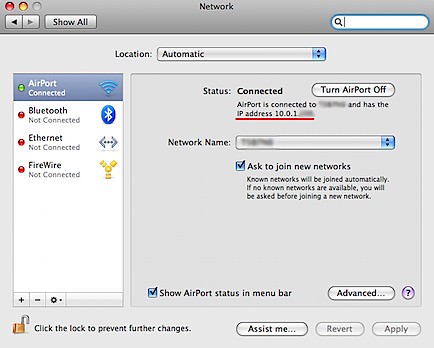
Step #1: Find out your IP

Open: System Preferences > Network

There you will see how you are connected to the internet. Under "Status" it will say the network and the IP address. Write down the IP.

Network.jpg

Step #2: Choose a port to forward and enter it in

The best ones are 49152–65534 but any will work. Once you've got one open up your Bittorent client and enter it in. I'm using Azureus and Transmission.

In Azureus it's done by clicking: Vuze > Preferences > Connection. Enter it in where it says "Incoming TCP / UDP listen port".

Picture 2.png

In Transmission it's done by clicking: Transmission > Preferences > Network. Enter it in where it says "Incoming TCP port".

Picture 3.png

Step #3: Open AirPort Utility

It's in Applications > Utilities > AirPort Utility

Picture 4.png

Step #4: Enable NAT Port Mapping Protocol

When you open AirPort Utility you get a window that shows all the different things your connected to. Double-Click the Time Capsule one you want to configure.

Picture 5.jpg

This will open a window that gives you access to all the Time Capsule's settings.

Click the "Internet" tab and make sure the checkbox "Enable NAT Port Mapping Protocol" is selected.

Enable.jpg

Step #5: Configure Port Mappings

Click the button right under "Enable NAT Port Mapping Protocol" that says "Configure Port Mappings".

This will take you to a screen that is accessible under: Advanced > Port Mapping.

Here it shows an "Allowed" list. We want to add the port you chose to it. Click the + sign under the list.

Ignore the part that says "Service". The 4 private and public port boxes enter the port you chose. In the "Private IP Address" box put the IP you wrote down earlier.

Port Mapping.jpg

When your done click continue.

The next part isn't too important. Name it whatever you want in the Description box (I did the name of the bittorent client) and click "Done".

Step #6: Update Time Capsule

Once you click done you may be asked if you want to update the changes. Click yes. Your Time Capsule will restart and save the changes.

Step #7: Enjoy!

Now that your time capsule is configured properly you should notice faster download speeds. Enjoy!

#7 - Remove Power Power Hogging Widgets

| Labels: , , , , , , , , , , , | 3 comments |

Dashboard is great. Tons of cool widgets that let you do almost anything.

But having all these widgets does affect your computer.dashboardlogo.jpg

Each widget needs a bit of memory to run. Some more then others.

Certain widgets need so much space they will slow down your computer. The ones that keep updating to show new info are probably the worst.

Don't feel like you can't have these widgets. I use them, they're great.

But if you want to give your computer a little boost just open dashboard and remove the widgets you don't need/use. Doing this will help take some strain off your computer.dashboard-big.jpg

If you don't use dashboard, why not disable it? This too will save you some energy.

The easiest way to disable dashboard is with Onyx. It's under: Parameters ---> Expose and Dashboard.

If you don't want to download Onyx you can turn it off with Terminal... it's more technical but you can do it.

This guide will tell you how to do it: http://www.macworld.com/article/46236/2005/08/disabledashboard.html

Good Luck!

#4 - Update Your Software

| Labels: , , , , , , , | 1 comments |

Keeping your software up to date is a great way to make sure things are running their fastest.

Developers are continually updating their software. They fix code errors and optimize the current code. This makes the software run faster, less likely to crash and so on.

Just make a point of setting your software to check for updates or do it yourself.

Some applications don't have anything that let's you check for updates though. In this case you can go to the site where you downloaded it and check that you have the newest version.

But let's face it. Do you really want to do this with ALL your applications? I don't think so.

Luckily I know a good solution.

Download the AppUpdate widget. It's a widget that checks that all your software is up to date. It makes all this much easier and quicker.

Read more about AppUpdate here.

#1 - Clean Useless Startup Items

| Labels: , , , , , , , , , , , , , , | 1 comments |

"10 Ways To Speed Up Your Mac": Clean Useless Startup Items

When you log on to your computer, it has a few programs that it loads as soon as it starts.

The more it has to load, the longer it will take to load. You can cut down the load time by removing some of these startup items.

To do this go to:

System Preferences --> Accounts --> (Click the account you want to clean) --> Login Items

There you can find a list of Applications that launch at the start.

Look through them to see which ones you don't need.

When you find one you want to remove click it to highlight it and click the minus button.

Do this with all the accounts you want. This will make your computer start and run faster!

10 Ways To Speed Up Your Mac!

| Labels: , , , , , , , , , , , , , | 1 comments |

Ever been using your computer and noticed it getting a bit slow?

Sometimes it's because your running tons of applications, or you haven't restarted your computer in ages. So you close a few things, reboot it up and problem solved.

Other times it's something else. Well there are things you can do to speed up your mac other then just running less apps.

I have made a list of "10 Ways To Speed Up Your Mac". Most of these ways are free so don't worry about pulling out your wallet. They're also fast so you can do them whenever you have some free time.

Here are "10 Ways To Speed Up Your Mac":

  1. Clean out useless startup items.
  2. Turn off unnecessary services.
  3. Remove "Other" unused preferences.
  4. Update Your Software
  5. Remove unnecessary code from your applications.
  6. Remove unused languages and translations.
  7. Get rid of power hogging widgets.
  8. Check "Activity Monitor".
  9. Clean up your hard drive.
  10. Run Onyx.

Don't worry, that's not all I'm leaving you with. This is a big subject though... to big for one post. I'll post a more detailed explanation for each tip in a separate post (like with the "Top 10 Favorite Mac Applications").

I keep up-dating, you keep checking back!

I'll start posting soon.


#1 - Quicksilver: Application Quicklauncher

| Labels: , , , , , , , , , , , , , , , | 1 comments |

#1 On my list of "Top 10 Mac Applications" is Quicksilver.

quicksilver_logo.png

Finally we have Quicksilver. I put it as #1 on the list... not necessarily because I ranked everything from best to worst... but this is definitely my favorite.

I call Quicksilver a application quick launcher... but it's soo much more!

I'll try describing it to you but I'll most likely fail so excuse me if that happens. The best way to understand it is download it and try it yourself.

Quicksilver allows you to do tasks like open applications, manipulate files, run scripts send e-mails and more... only using your keyboard.4_quicksilver001.jpg

This application will make everything you do go 10 times faster... literally.

Say you want to open an application... say iTunes.

Now I could go to the application folder and do this but that takes a lot more time then using Quicksilver. I would open it by:

  1. Opening quicksilver using my chosen "trigger" (a combination of keys you press to start Quicksilver. I use Option + Space.)
  2. Type "i" (Quicksilver indexes everything on your computer, typing "i" makes it search for things with/relating to "i")
  3. If you use iTunes all the time, Quicksilver will figure this out and iTunes will be at the top of the list for things to open.
  4. Hit enter and iTunes opens.

This takes all of 2 seconds.

Quicksilver doesn't only let you open apps, you can open bookmarks with it, find and open files and so much more.

Check it out because me explaining it will take up too much space.

Quicksilver Website: http://docs.blacktree.com/quicksilver/what_is_quicksilver

You can download and find out more about it there.

Enjoy!


#4 - Firefox: Better Web Browser

| Labels: , , , , , , , , , , , , , , , | 1 comments |

#4 On the list of "Top 10 Mac Applications" is Firefox.

Today on mac there are 2 main browsers, Safari and Firefox.firefox.jpg

Safari boasts extremely fast load times while Firefox has it's endless amounts of add-ons and plugins. So which to choose?

Well both are great browsers. Before I tried the new Firefox (Firefox3) I would have said Safari. It's fast, blends in with the OS X interface, perfect.

The current stable Firefox (Firefox 2.0.0.14) seems to be a bit slow on mac and also doesn't look too great (in my opinion).

Firefox3 is tottaly different though. They've changed the look to match the rest of the OS, it's faster and works much better. And it's still it Beta.safari_logo.jpg

Safari is great but cannot stand up to the amount of features and add-ons you can get for Firefox.

For the moment feel free to stay with Safari, but when Firefox3 comes out your gonna want to give it a try.

You won't be disappointed.

Firefox Website: http://www.mozilla.com/en-US/firefox/

Current Firefox3 (Beta 5) Download Site: http://www.mozilla.com/en-US/firefox/all-beta.html

#5 - Onyx: Multifunction Utility

| Labels: , , , , , , , , , , , , , , , , , | 1 comments |

#5 On the list of "Top 10 Mac Applications" is "Onyx".

OnyX-Leopard.png

After using your mac for a while it is going to accumulate junk type files, permissions get changed and so on.

This can cause your computer to slow down and so on.

For this reason it is good to have a application to clean out the crap and check that everything is working alright. There are a few applications that do this but my favorite is Onyx.

OnyX-Tiger.png

Why?

Well all these applications do pretty much the same thing... Onyx just does it for free.

You can get a variety of different apps but they cost money and do the EXACT same thing. Why pay?

Onyx also lets you get at some of your Mac's hidden features allowing you to customize things like your Dock, Finder, Dashboard, Login, Safari and other things.

OnyX-Panther.png

Onyx is a great application to have to do regular cleaning and change hidden preferences.

Definitely worth looking at.

The Onyx Website: http://www.titanium.free.fr/pgs/english.html

#7 - Xslimmer: Application Slimmer

| Labels: , , , , , , , , , , , , | 1 comments |

#7 On the list of "Top 10 Mac Applications" is Xslimmer.

Xslimmer is a great app that "slims" your applications. It can take your 500mb Applications and shave them down to 200mb.

How?

Applications are full of other stuff you don't really need.XslimmerLogo.png

Language support files are the big one. These are used if you want to use whatever app in a different language.

It's great that you can use iTunes in everything from Chinese to Spanish but nobody does. Most people use only 1, maybe 2 and barely ever 3.

Xslimmer let's you choose the languages you want to keep and deletes the rest. Doing this to all your applications will save you tons of space.

This application is great. It frees space, speeds up your computer and makes your applications load faster.

Unlike most of the other applications which are free, Xslimmer costs 12.95 but's worth every penny.

Check it out.

Xslimmer Website: http://www.xslimmer.com/